
Help / Pipento 101
Connecting Pipento to Claude
How to connect Pipento to Claude, what Claude can do with your pipeline, and how to disconnect it.
Pipento works with Claude. Once you've connected the two, you can ask Claude about your pipeline and it'll answer from your own deals. It can also make the small updates for you, like logging a call or moving a deal to the next stage, so your pipeline stays current without you opening Pipento every time.
What Claude can do
Claude can search your deals and contacts, summarise your pipeline and read a deal's history. You could ask which deals have gone quiet, who's due a follow-up this week or how you're tracking against your target. If you manage a team in Pipento, summaries cover the whole team unless you ask for your own deals.
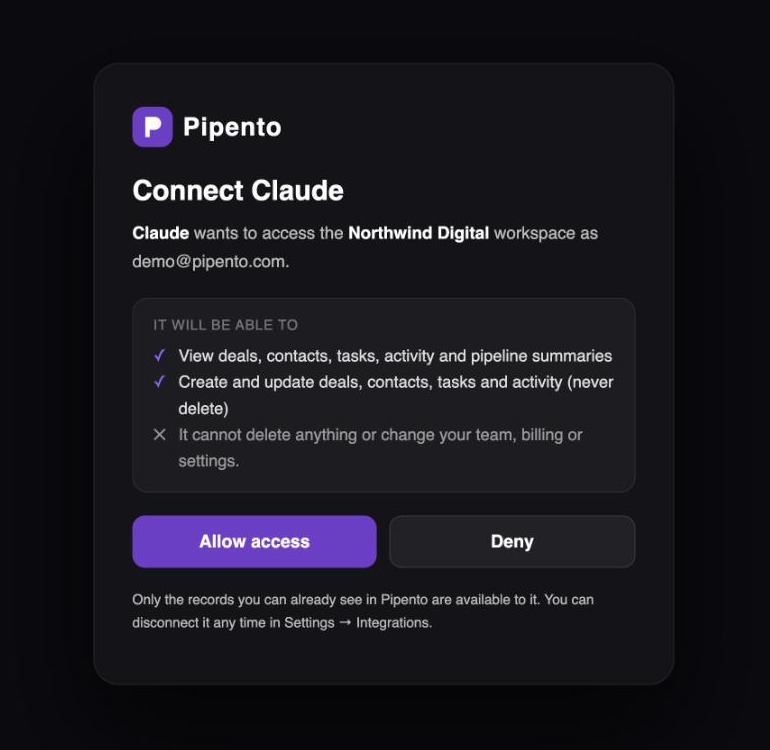
It can also make changes. Claude can add deals, contacts and tasks, update a deal's stage, value, next action, follow-up date or lost reason, complete tasks, and log activity such as a call or a meeting.
It can't delete anything, and it can't change your team, billing or settings. It only sees the records you can already see in Pipento.
Connecting it
The Claude connector comes with every Pipento plan. On the Claude side it works on every plan, including the free one, although a free Claude account can only add one custom connector.
You set this up in Claude, not in Pipento. In Claude, go to Customize, then Connectors, click Add and choose Add custom connector. Name it Pipento and paste in this server URL: https://app.pipento.com/api/mcp
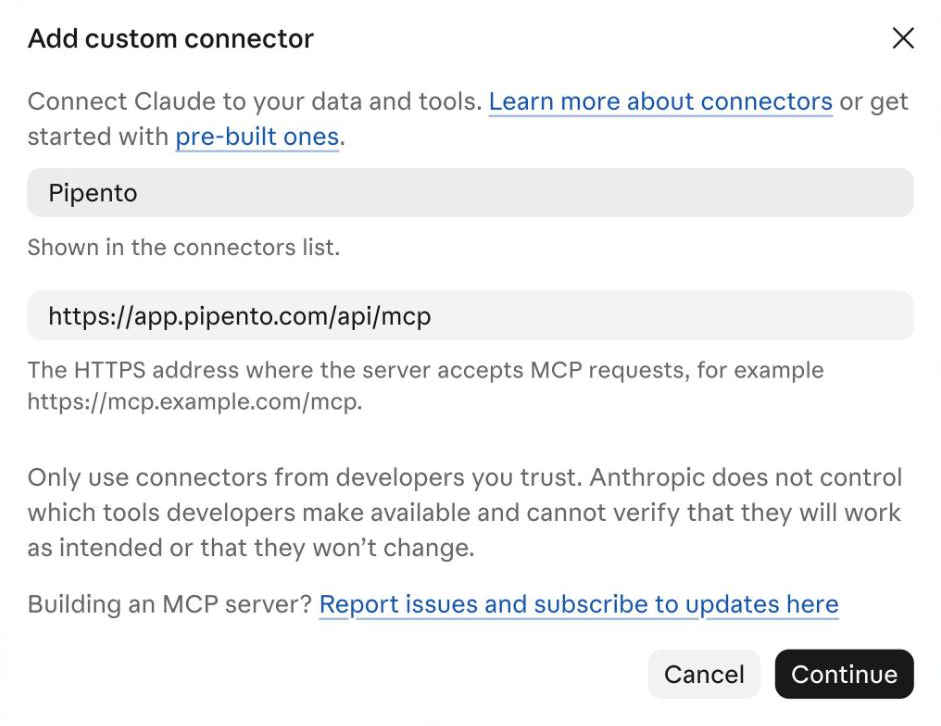
Click Continue. Claude works out the sign-in settings by itself, so click Continue again without changing them.
Claude then sends you to Pipento. Sign in if it asks you to, check the list of what Claude will be able to do and click Allow access.
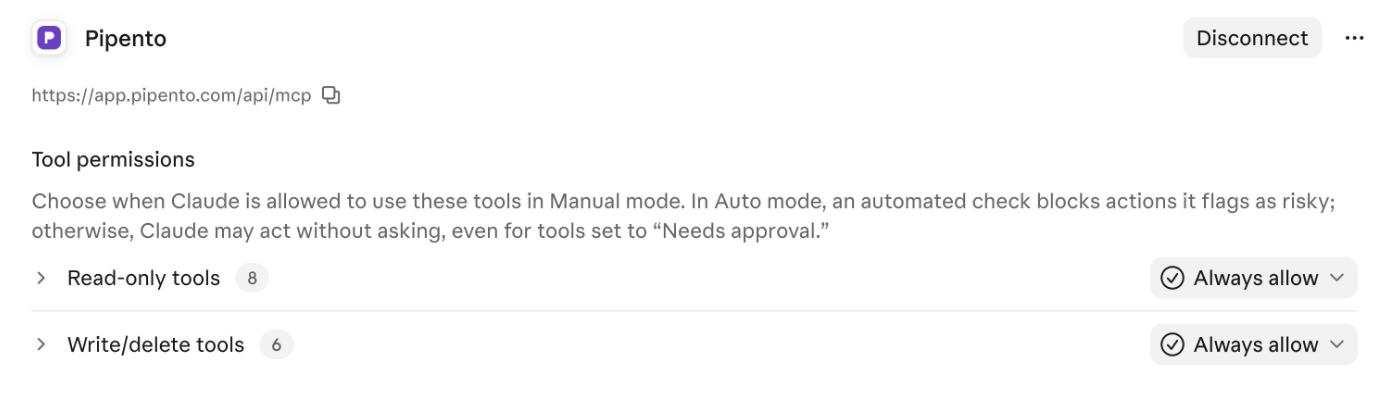
You'll be taken back to Claude, where Pipento now shows in your connectors with its tools listed. In a chat, open the tools menu and check Pipento is switched on.
If you're on a Claude Team or Enterprise plan and can't see Add custom connector, an owner of your Claude organisation needs to add it first, under Organization settings, then Connectors.
Pipento uses the Model Context Protocol (MCP), so other assistants that support MCP connectors can connect the same way with the same server URL.
Seeing and removing the connection
In Pipento, go to Settings, then Integrations. Your connections lists every application you've connected, when you connected it and when it was last used. The server URL is shown there too, with a Copy button.
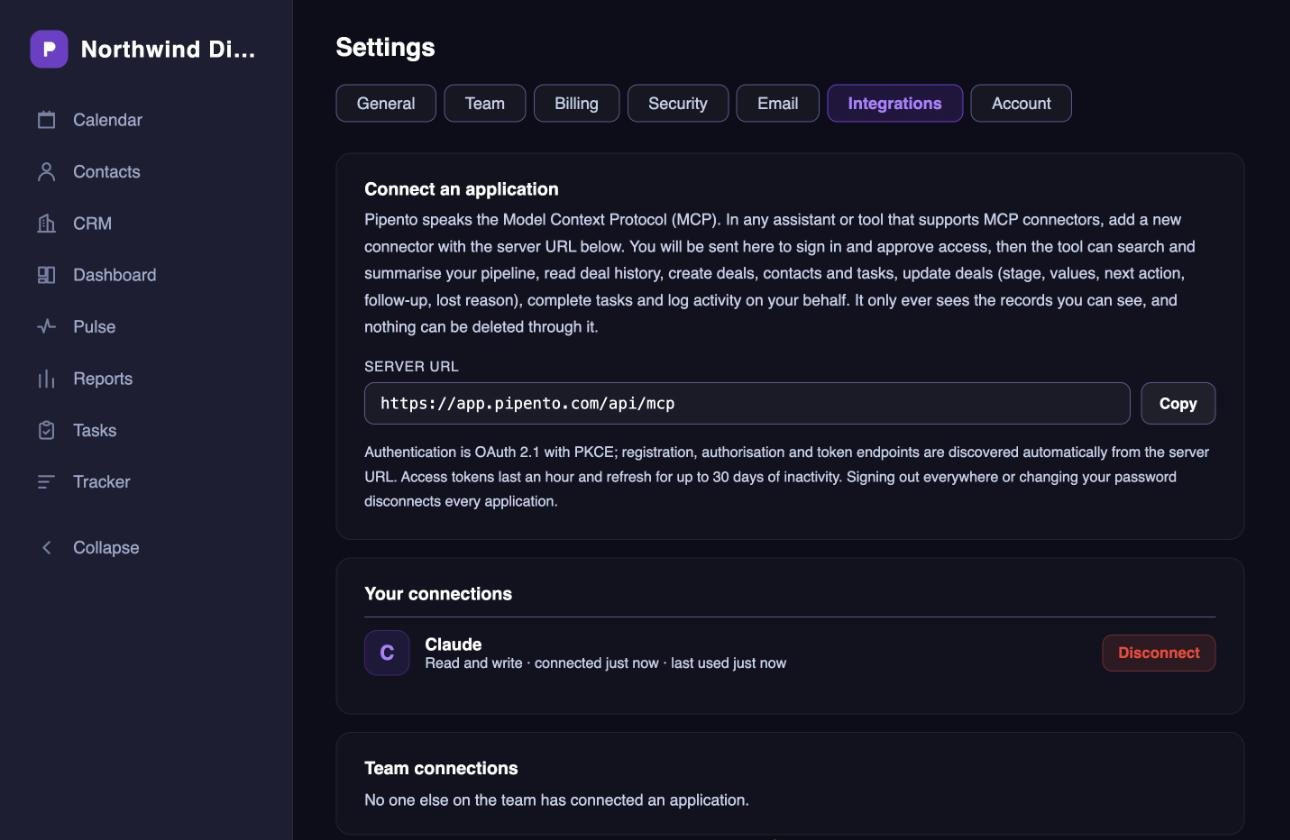
Click Disconnect to remove Claude's access straight away. Signing out everywhere or changing your password also disconnects every application. Team connections shows which applications other people on your team have connected.
Coming next
We're working on having Claude read your emails, calendar invites and call notes and keep each deal up to date for you. When it isn't confident about a change, it'll ask you first. You can follow progress on the changelog.